Your first bin
Once Stache is running, this is the whole workflow. It takes about two minutes.
1. Create the first account
Section titled “1. Create the first account”Open the app and sign up. The first account created becomes the household admin — after that, new accounts are added from inside the app (Settings → Household), not from the login screen.
2. Print some labels
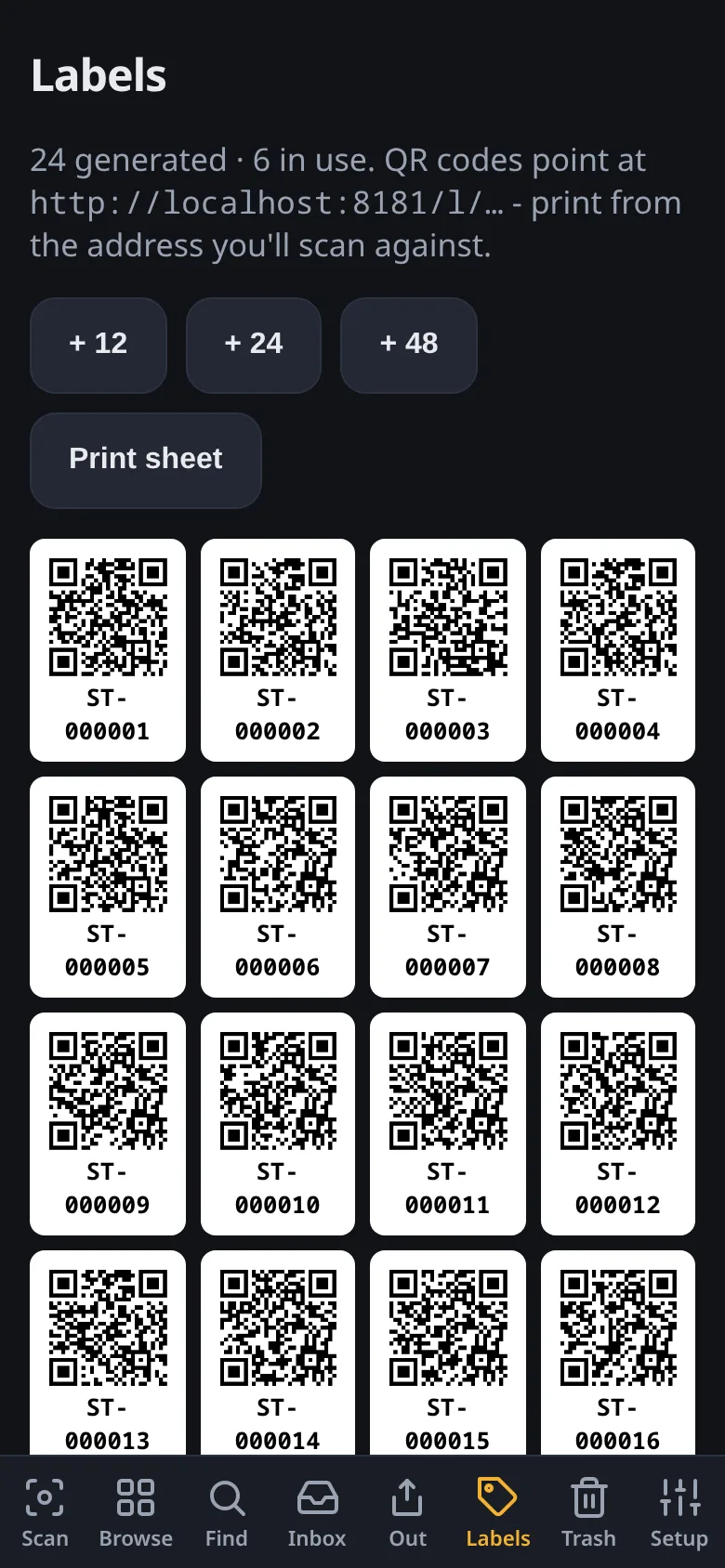
Section titled “2. Print some labels”Go to Labels and print a batch. Each label is a random QR like ST-K7QX9M2T — it means nothing until you claim it, so you can print a whole sheet and stick them on things whenever.
Any printer works; if you have a label printer (Zebra/ZPL over the network, a CUPS queue, or DYMO Connect) you can hook it up in Settings → Printers.
3. Claim a label
Section titled “3. Claim a label”Stick a label on a bin, shelf, or drawer. Scan it with your phone camera (or type the code) — Stache asks you to name the area and optionally photograph it. Done: that QR is now a scannable container.
Areas nest — a bin can live on a shelf in a closet in the garage. Scan the parent first to put new areas inside it, or rearrange later.
4. Put things away
Section titled “4. Put things away”With the area open (scan its label anytime), tap the camera and snap photos of what goes in. Each photo is an item — you can add a name now, later, or never.
Scan first, snap after; or snap first and file into the area after — both orders work.
5. Find it later
Section titled “5. Find it later”- Search by name, description, or tag — fuzzy, typos tolerated.
- Scan the bin’s label to see its contents.
- Search by photo — drop in a picture and Stache finds similar-looking items (see Finding things).
- Scan a product barcode on filing and Stache looks up what it is.
That’s the loop. Print more labels as you need them.